HLO: test-tube rack
Rebuild the test-tube rack with a screenshot of every important step. It is a rack for four 16 mm tubes.
Before you start
- Tinkercad works in millimetres. The grid step is at the bottom right and is set to 1.0 mm.
- The arrow keys move the selected shape by one grid step. With Shift it is ten times as much. Ctrl+↑ and Ctrl+↓ lift the shape up or lower it.
- D puts the selected shape back on the workplane. Handy to start a height again.
- A Hole only cuts something away after you group it with the solid part.
Parts and sizes
Tube diameter 16 mm, hole 17 mm, four holes with 22 mm between their centres.
| Part | Size (mm) | Note |
|---|---|---|
| Box | 100 × 30 × 20 | outer size of the rack |
| Hole cylinder | Ø 17 × 17, h 20 | bottom at 5 mm |
| Centre distances | 17 · 39 · 61 · 83 | from the edge, 22 mm apart |
| Text | 1 mm high | your name, bold |
1. New design and the outer box
In the dashboard go to Create → 3D design. Drag the red block (Box, Solid) from the Basic Shapes panel onto the workplane.
Note. The first shape in the panel is a grey striped Hole box. If you drag that one, you get a hole instead of a solid block. The red shape is on the second row.
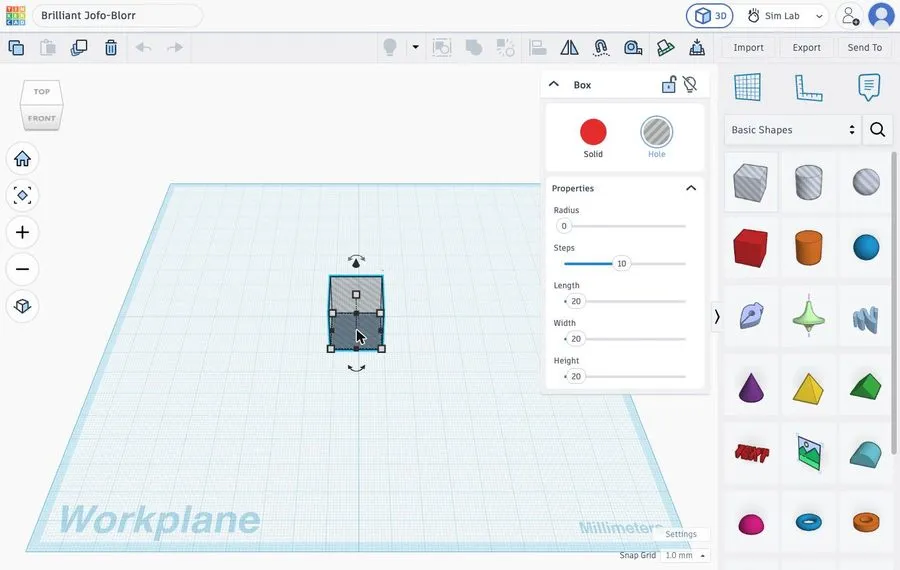 This is the Hole box (grey striped). Remove it with Delete and take the red block.
2. Size of the box: 100 × 30 × 20 mm
In the properties panel, click the number next to Length, type 100 and confirm with Enter. Do the same for Width (30) and Height (20).
Tip. In Tinkercad, Length runs along the depth axis of the workplane (front to back). So the rack points away from you on the screen. That does not change the sizes.
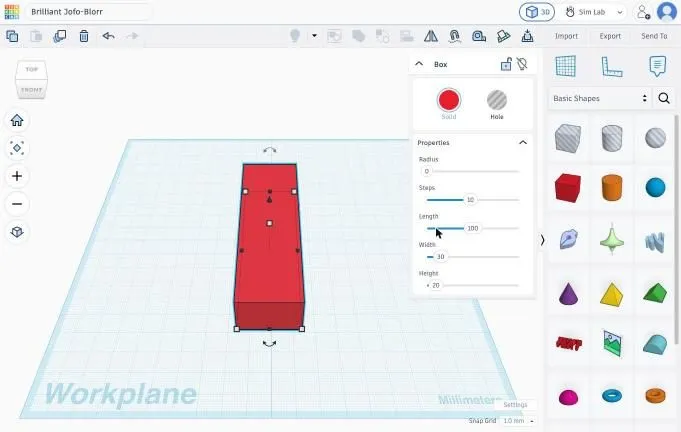 The box after entering the three sizes.
3. Cylinder as a Hole
Drag the grey striped cylinder (Hole) next to the box. Select it and click a white corner handle. Two size labels (20.00) appear around the cylinder.
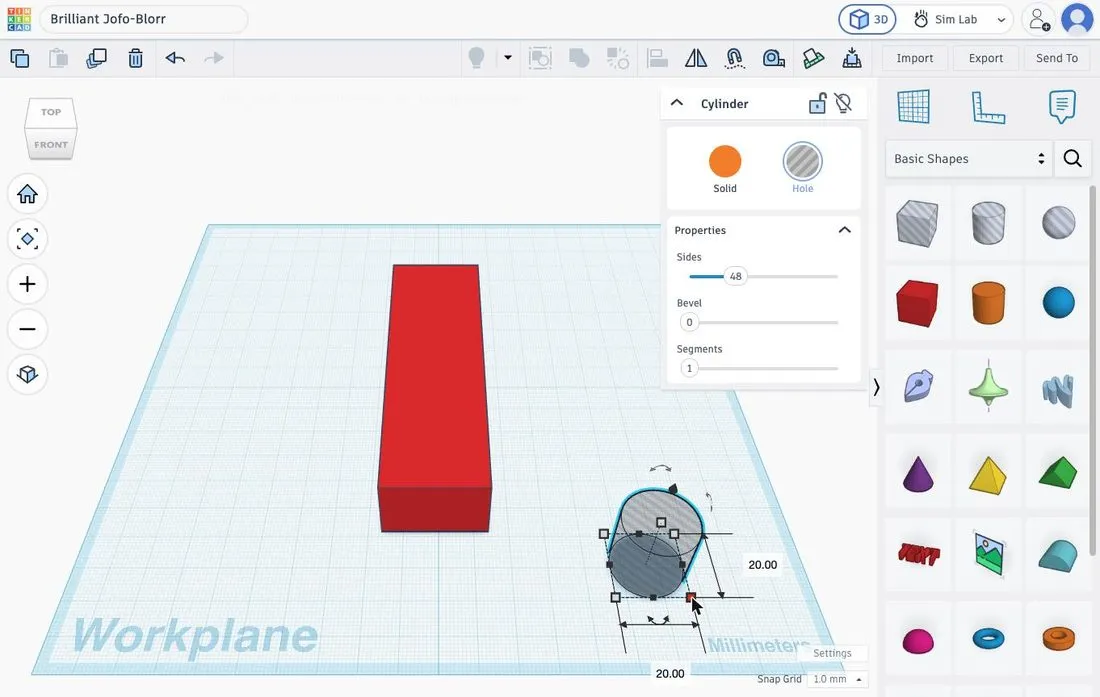 Click a corner handle to show the size labels.
4. Diameter 17 × 17 mm, height 20 mm
Click a size label, type 17 and press Enter. Do this for both labels. The height is 20 mm by default and stays that way.
Check. 17 mm gives 0.5 mm clearance on each side for a tube of 16 mm.
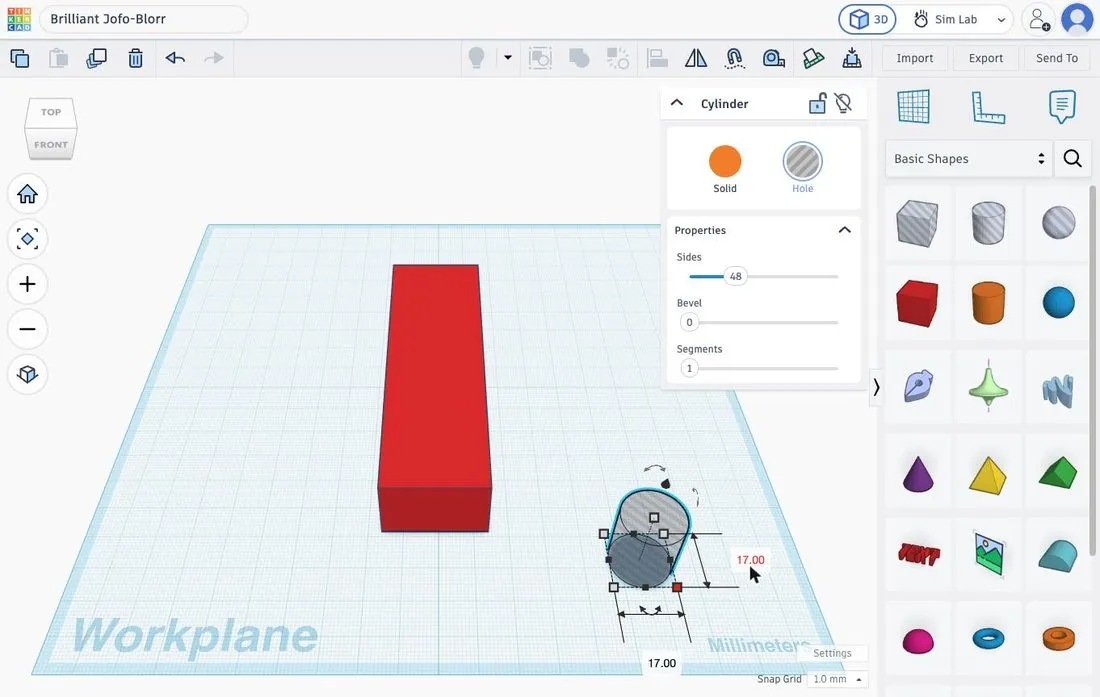 Both labels now show 17.00.
5. Lift the cylinder 5 mm
With the cylinder selected, press Ctrl+↑ five times. With a grid step of 1 mm, the bottom is then 5 mm above the workplane. You see a shadow under the cylinder. The top sticks out 5 mm above the box, so the hole is 15 mm deep and the floor 5 mm thick.
Tip. Not sure about the height? Press D to put the cylinder back on the workplane and lift it again.
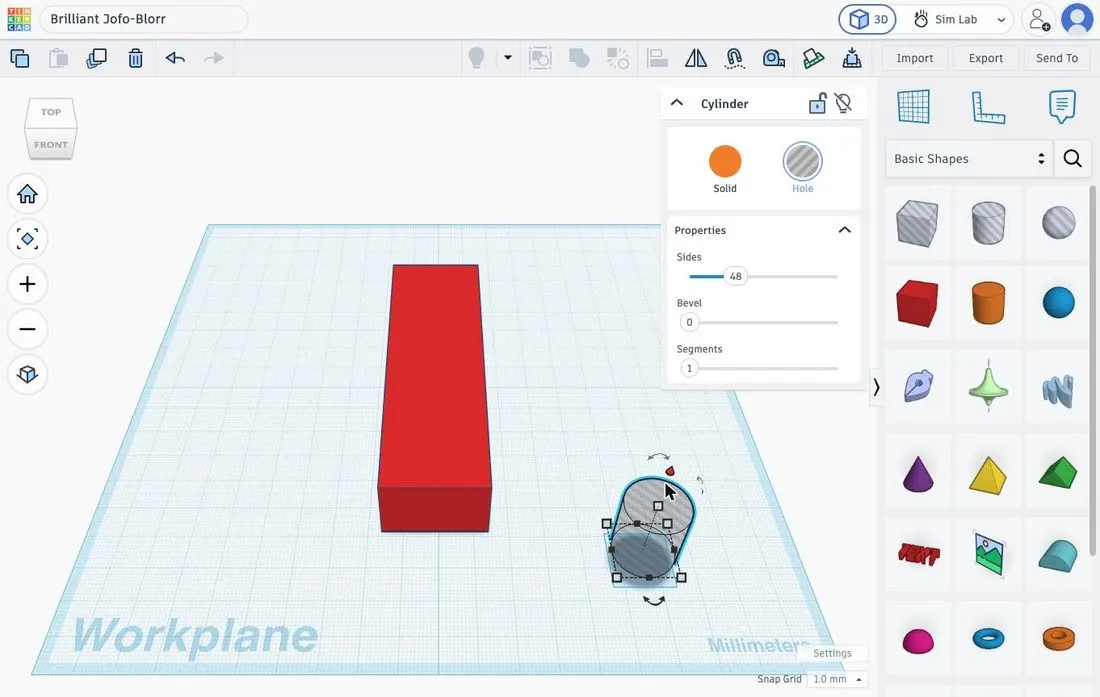 The shadow shows that the cylinder is lifted.
6. Centre the cylinder with Align
Select the cylinder, hold Shift and click the box. Click the Align icon in the toolbar (sometimes twice: the first click selects, the second activates). Click the middle black handle for X and then for Y.
Note. Align moves both shapes to their shared centre. If you want the box to stay where it is, click the box itself first to pin it. For this exercise the position of the shapes relative to each other matters, not the spot on the workplane. Do not touch the height handles on the right.
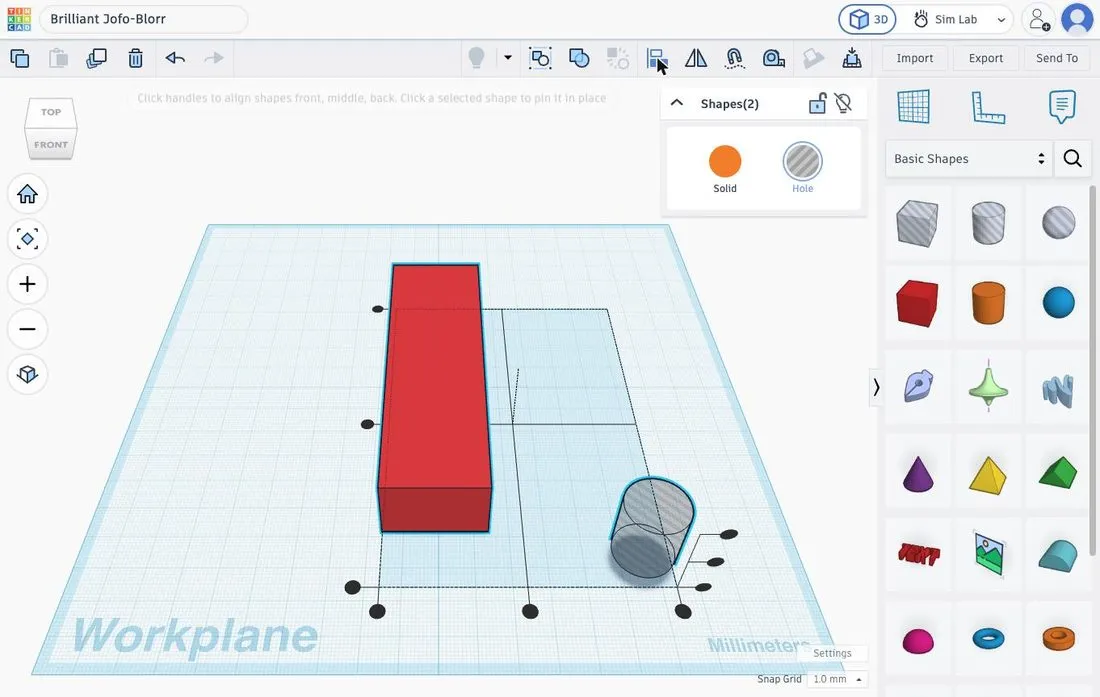 The black Align handles. Pick the middle one for each axis.
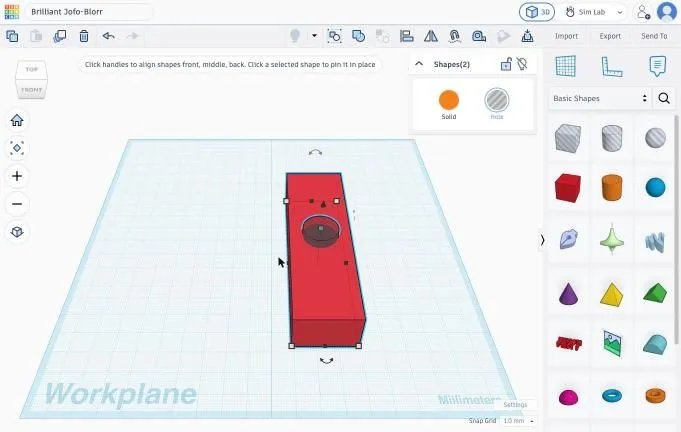 The cylinder now sits in the middle of the box.
7. First hole 17 mm from the edge
The box is 100 mm long, so the middle is at 50 mm. The first hole must be 17 mm from the edge, so 33 mm from the middle. Select the cylinder and press Shift+↓ 3 times (3 × 10 mm) and ↓ 3 times (3 × 1 mm).
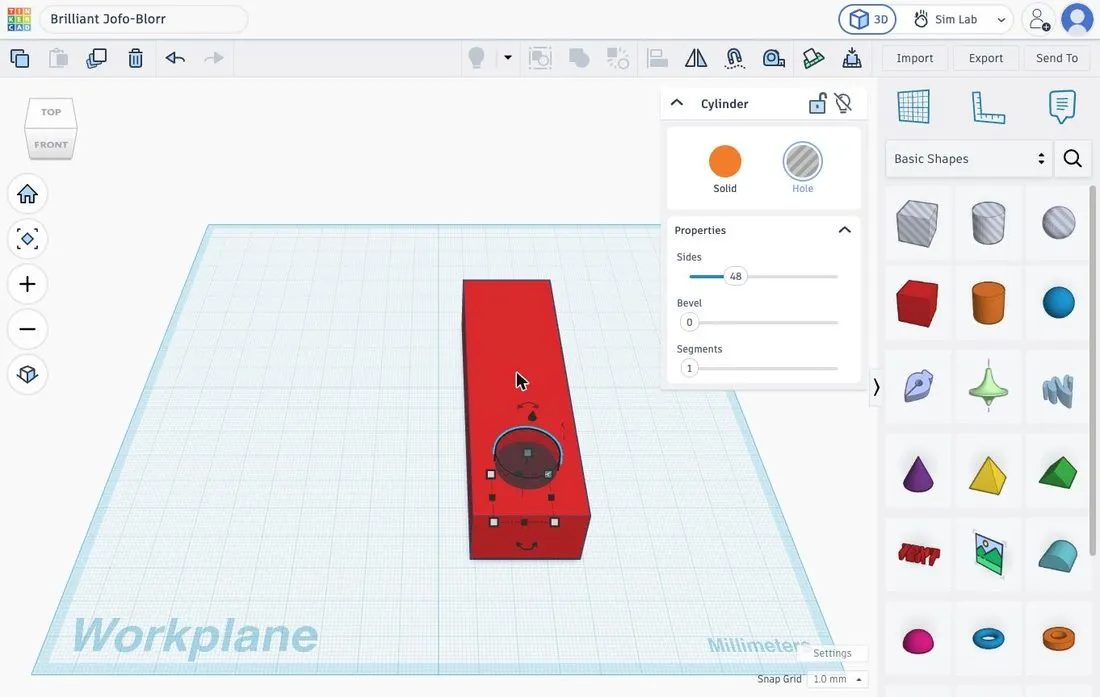 The cylinder is at the first position, at the front of the box.
8. Three copies 22 mm apart
Duplicate the cylinder with the copy icon in the toolbar (or Ctrl+D). The duplicate sits exactly on the original. Click the cylinder and move it 22 mm up (Shift+↑ twice, ↑ twice). Repeat with 44 mm and 66 mm for the next two.
The centres are then at 17, 39, 61 and 83 mm from the edge. The walls between the holes are 22 − 17 = 5 mm thick.
Check. Press Ctrl+A. The panel must show Shapes(5): the box and four cylinders.
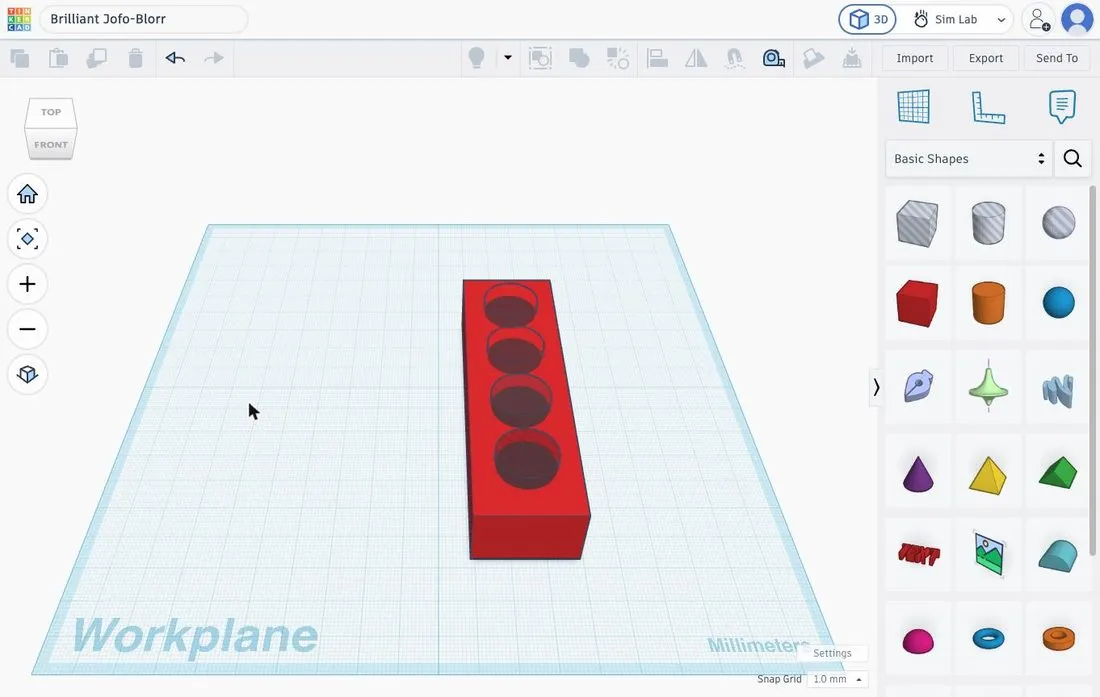 Four holes at equal distances in the box.
9. Group: the holes are cut
Select everything with Ctrl+A and click Group (Ctrl+G). The four blind holes are now cut out.
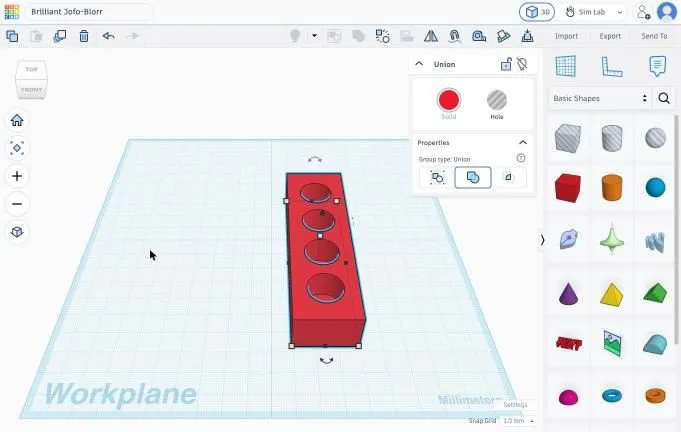 The rack with four holes as one group.
10. Your name on the front: move the workplane
Click the Workplane tool (at the top of the right-hand panel) and click the front face of the rack. The workplane jumps to that face. Then drag the Text shape onto it; the text stands upright on the front.
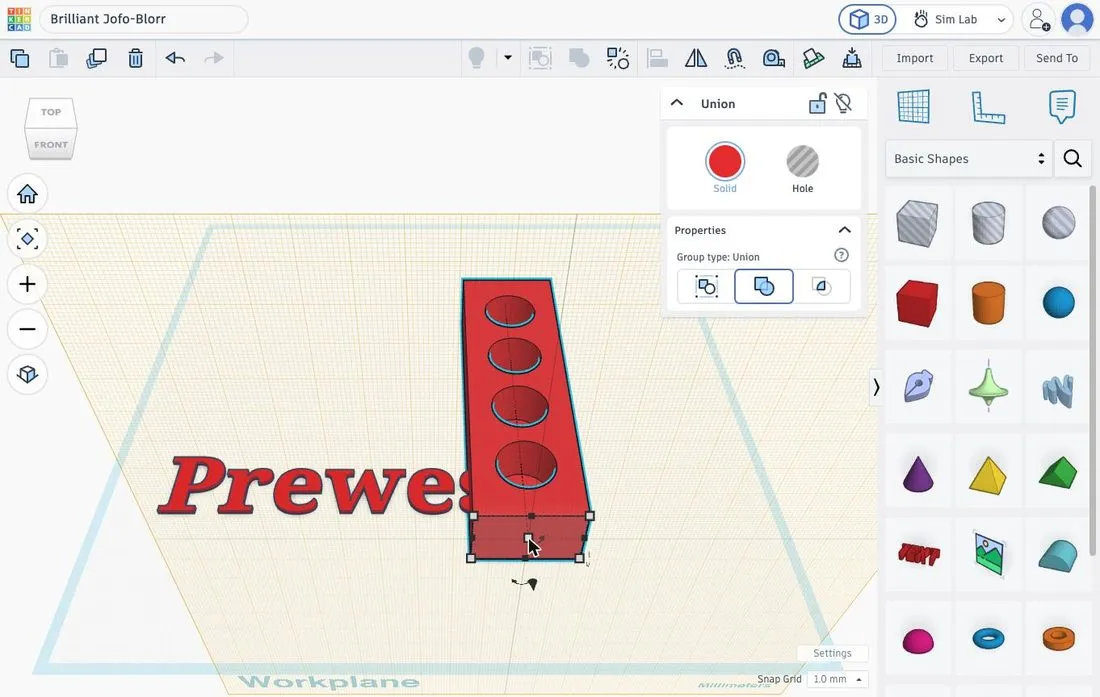 Workplane tool: click the face where the text must go.
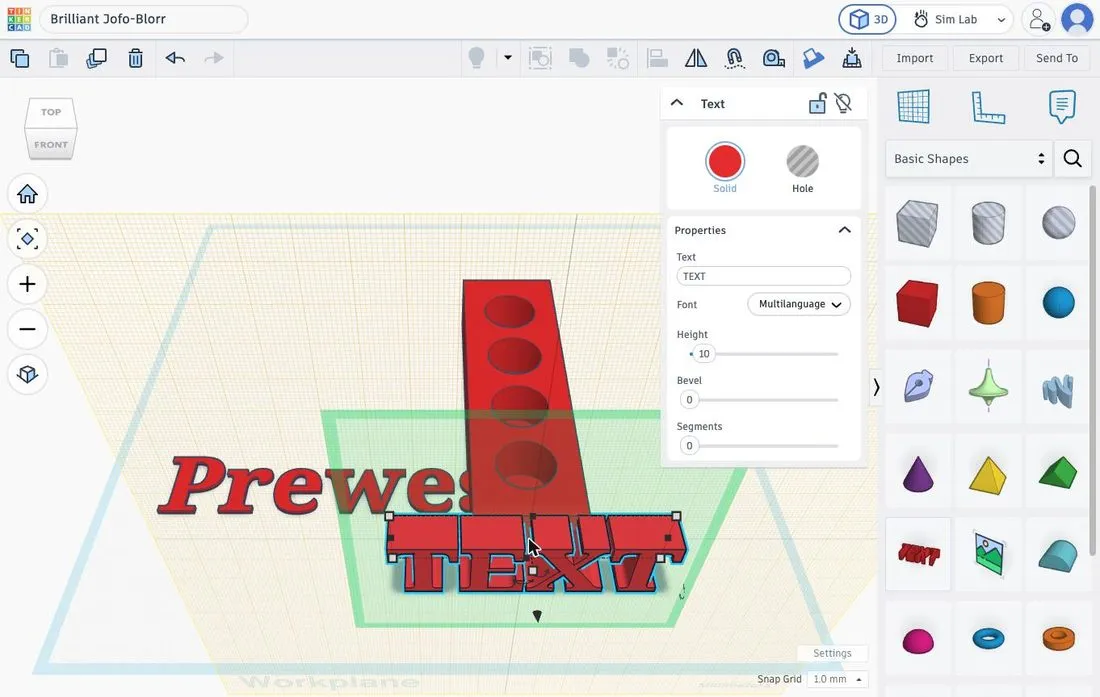 The text shape is on the new workplane.
11. Your name, bold font, height 1 mm
Enter your name under Text. Under Font, choose Multilanguage, the heaviest font Tinkercad offers. Set Height to 1: the letters stand out 1 mm from the wall.
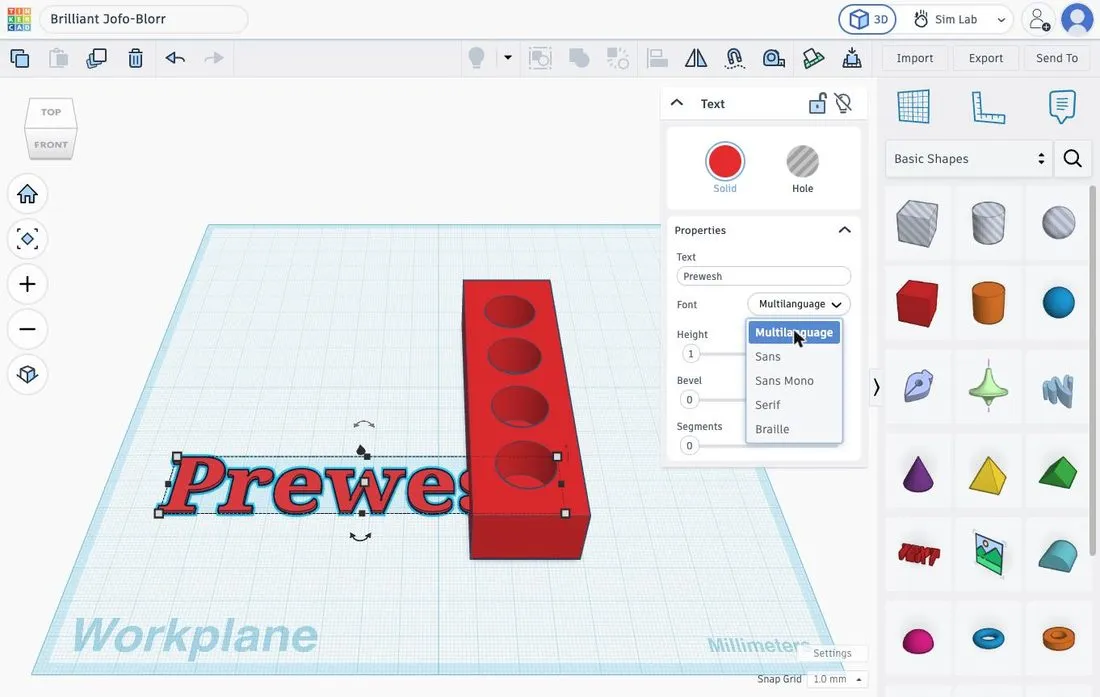 Text entered and Height set to 1.
12. Scale the text to 26 × 5 mm
By default the text is far too big (118 mm). Click a corner handle and fill in both labels: 26 for the width and 5 for the letter height.
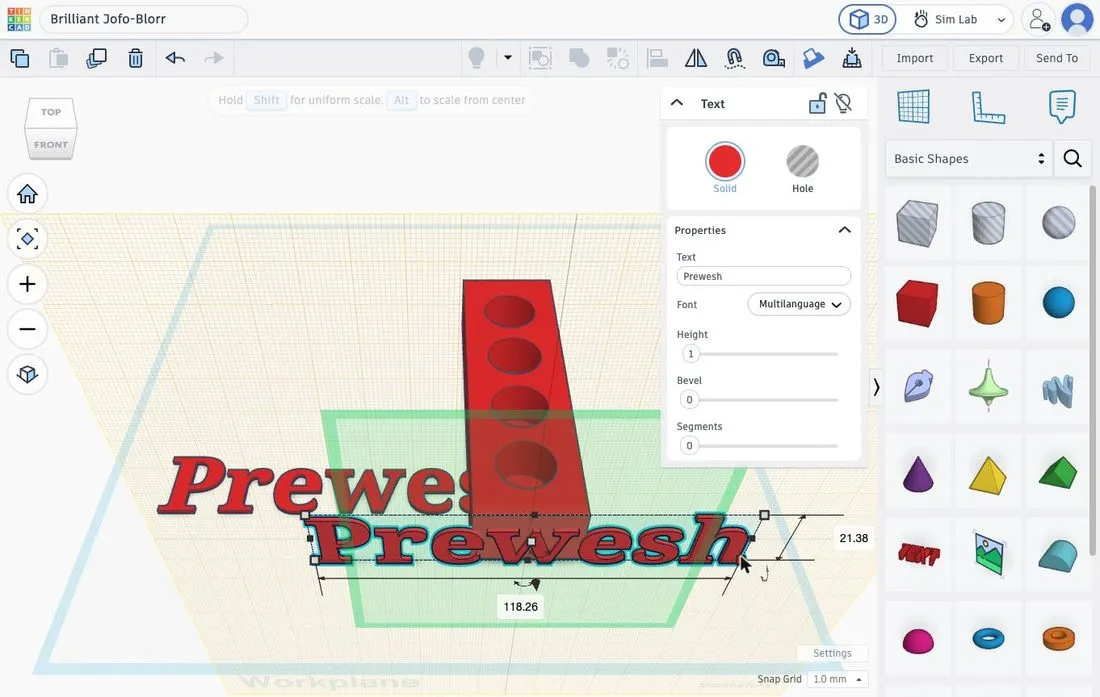 Before scaling: 118.26 × 21.38.
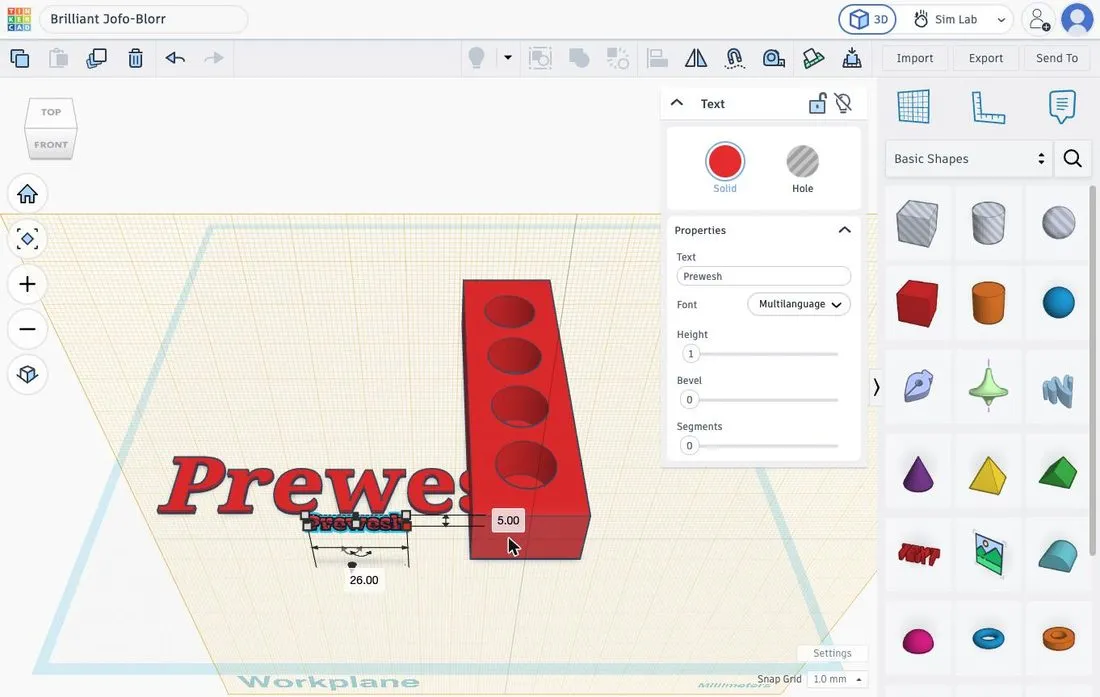 After scaling: 26 × 5.
13. Centre the text and group everything
Select the text and the rack, open Align and click the middle handles for width and height. Then delete any stray text, select everything and group again.
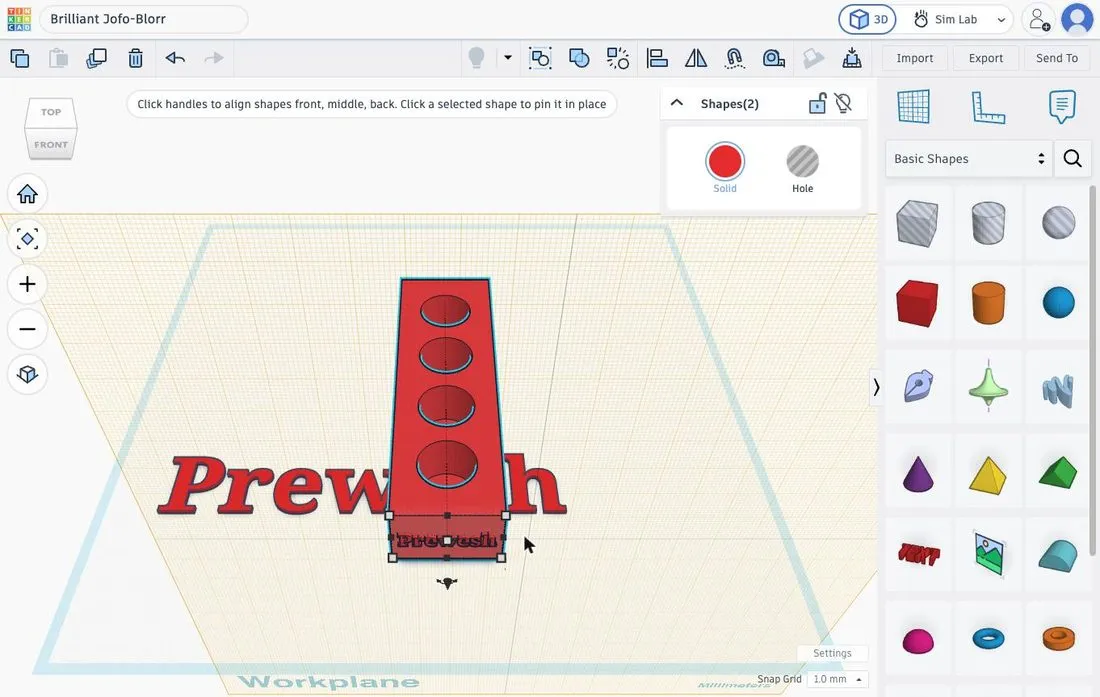 Your name is in the middle of the front.
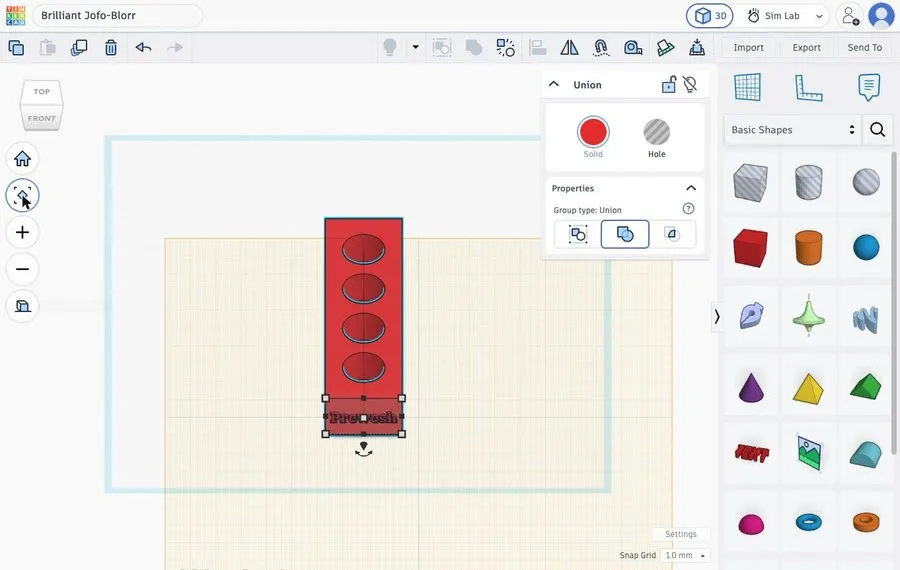 The complete test-tube rack.
14. Check
- Tube 16 mm in hole 17 mm: 0.5 mm clearance on each side.
- Walls between the holes: 5 mm, well above the minimum of 1.2 mm.
- Hole depth 15 mm, floor 5 mm.
Common mistakes
- The hole does not appear. The shape is still Solid, or you forgot to group.
- Align moves the wrong shape. Click the shape that must stay put first to pin it, or press Ctrl+Z and try again.
- A shape cannot be selected. It is hidden behind another one. Temporarily move the other one aside.
- A height is wrong. Press D and lift again with Ctrl+↑.
Tolerance. If you print the design, first print a small test piece and adjust the clearance. Real batteries and test tubes differ from the sizes given.